How to Keep Your Face the Same in AI Photos: Face-Lock Guide
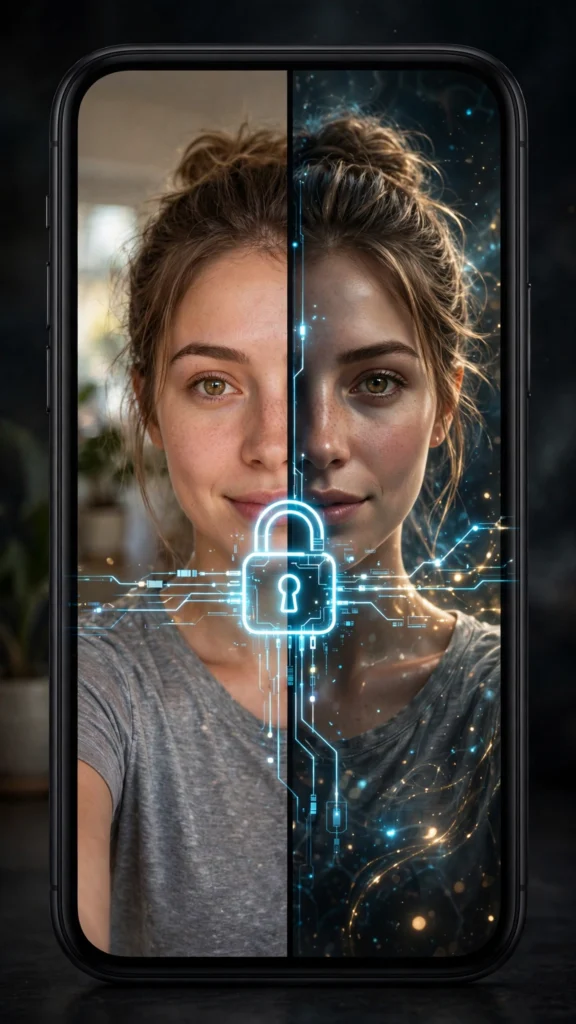
It is the most common frustration in AI photo editing: you upload your picture, paste a great prompt, and get back a beautiful photo of someone who is almost — but not quite — you. The eyes are a little off, the smile is a stranger’s, and the whole thing feels uncanny. The good news is that face drift is fixable. With the right source photo and one specific prompt technique, you can get AI portraits that are unmistakably you, nearly every time.
Why AI changes your face
Image models do not “edit” your photo the way Photoshop does. They look at your uploaded image, understand what is in it, and then generate a brand-new image guided by your prompt. Your face is recreated from scratch, not copied pixel by pixel. That means the model is making thousands of tiny guesses about your features — and when the prompt pushes toward a heavy style change (anime, cinematic lighting, dramatic angles), those guesses drift.
Three things make drift worse: a blurry or dark source photo (the model has little to work with), prompts that redescribe the face (“beautiful sharp jawline” invites the model to invent one), and extreme style transformations. Fix those three, and consistency jumps dramatically.
The face-lock prompt line
The single most effective technique is adding an explicit identity instruction to your prompt — what creators call a face-lock line. It tells the model that preserving your face outranks everything else. Add one of these lines to the start or end of any prompt:
Keep the exact same face, facial features, skin tone and identity as the person in the uploaded photo. Do not change or beautify the face.
Shorter version that also works well:
Preserve the person’s identity and facial features exactly as in the reference photo.
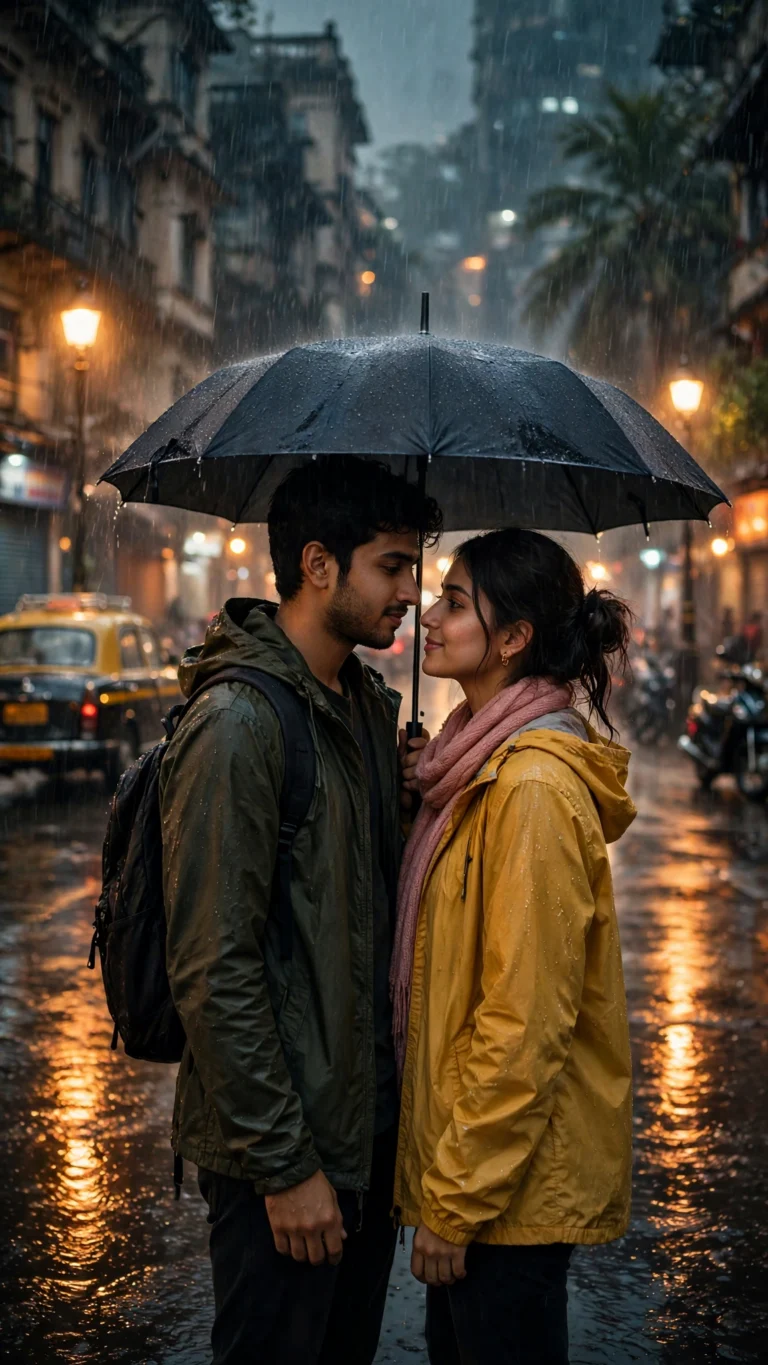
Why does this help? Without it, the model treats your face as just another element it is free to restyle. The face-lock line raises identity preservation to a hard constraint. It is not magic — extreme transformations can still drift — but in our testing it is the difference between “looks like a cousin” and “looks like me.” Try it on a portrait style like our aesthetic cafe mirror selfie and compare with and without the line.
Start with the right source photo
No prompt trick can rescue a bad reference photo. Before you even open the AI tool, pick your source image carefully:
- Good lighting beats everything. Soft daylight on your face — near a window, outdoors in shade — gives the model the clearest read of your features. Avoid harsh overhead light and heavy shadows.
- Face the camera. A straight-on or slight three-quarter angle works best. Extreme side profiles and tilted-down selfies give the model less facial information.
- Keep a neutral, natural expression. A relaxed face or soft smile is easier to preserve than an exaggerated pose. Save the drama for the styling, not the reference.
- Use the highest resolution you have. A crisp photo lets the model see your actual features; a compressed WhatsApp forward forces it to guess.
- One person, unobstructed. Sunglasses, masks, hands over the face, or group photos all dilute the identity signal. Glasses are fine if you always wear them — just keep them consistent.
Face-lock in Gemini: step by step
- Open the Gemini app and start a new chat.
- Attach your best source photo (see the checklist above).
- Paste your chosen prompt from our library, with the face-lock line added at the end.
- Generate, then zoom in on the face. If it looks right, you are done — Gemini’s character consistency does most of the heavy lifting.
- If it drifted slightly, reply in the same chat: “Keep the same face exactly, only change the background/lighting.” Iterating in the same conversation preserves context better than starting over.
Face-lock in ChatGPT: step by step
- Open ChatGPT, attach your source photo, and paste the prompt with the face-lock line included.
- ChatGPT follows instructions literally, so be explicit: mention the face, the hairstyle and even the expression you want kept.
- If the result drifts, do not rewrite the whole prompt. Reply with a targeted correction: “The face changed — regenerate keeping the exact face from my uploaded photo.”
- For heavy styles, generate the realistic version first, then ask for the style applied to that result in a follow-up message. Two smaller jumps drift less than one giant leap.
When the face still drifts: fixes that work
- Simplify the prompt. Remove any adjectives describing the face itself (“flawless skin”, “sharp features”) — they invite reinvention.
- Reduce the style jump. If “cyberpunk warrior” destroys your identity, try “subtle cinematic portrait” first, then increase intensity step by step.
- Try a different source photo. Sometimes one reference just does not encode well. A different angle or better lighting can fix what prompting cannot.
- Generate three and pick. Randomness means one of three attempts is often noticeably closer. This is normal workflow, not failure.
- Switch tools for that photo. Gemini generally preserves identity better; a prompt that drifts in ChatGPT may hold perfectly in Gemini, and vice versa.
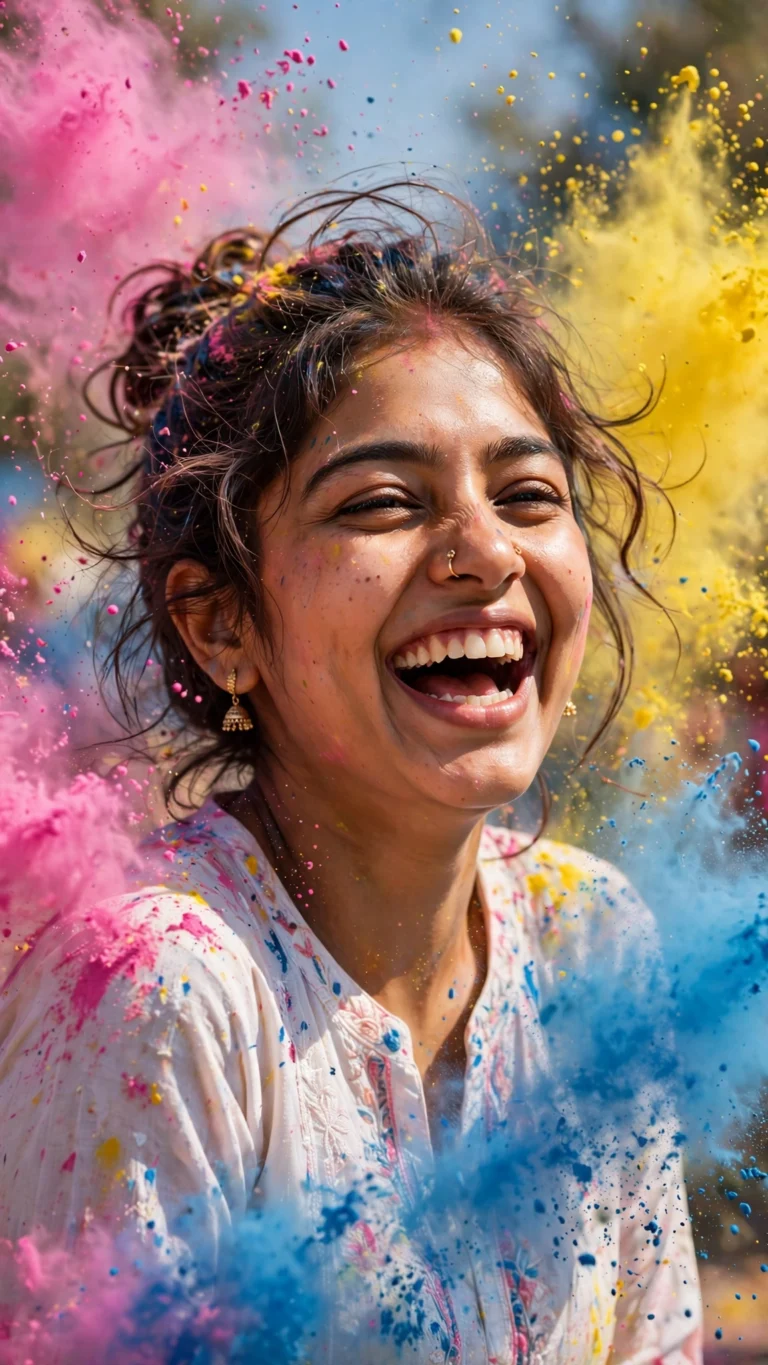
Once your face-lock workflow is dialed in, festival styles become much more fun — try it on our Diwali diya glow portrait and see how the identity holds through the dramatic lighting.
FAQ
Why does the AI make me look like a different person?
Image models regenerate your face from scratch rather than copying it, so features get approximated. Poor lighting, low resolution, or prompts that redescribe the face make the approximation worse. A clear source photo plus a face-lock line fixes most cases.
What is the exact face-lock prompt I should use?
Use: “Keep the exact same face, facial features, skin tone and identity as the person in the uploaded photo. Do not change or beautify the face.” Paste it at the start or end of any prompt. It works in both ChatGPT and Gemini.
Does face-lock work for couple photos?
Mostly yes, but two faces are harder than one. Use a clear photo where both faces are visible and well-lit, and extend the line: “Keep both people’s faces and identities exactly as in the uploaded photo.” Gemini tends to handle this better than ChatGPT.
Can AI preserve my face in anime or cartoon styles?
Partially. Stylized outputs will always reinterpret your features — that is the point of the style. What face-lock preserves is recognizability: the same face shape, key features and overall identity, rendered in the new style. Expect “you as anime,” not a photorealistic face on a cartoon body.
Is it safe to upload my face to these AI tools?
Use only photos you are comfortable sharing with the AI provider, check the app’s privacy settings, and never upload ID documents. Both ChatGPT and Gemini are mainstream tools with published privacy policies, but your face is biometric data — treat it with care.
- ChatGPT — OpenAI’s AI assistant with image generation
- Google Gemini — Google’s AI assistant with native image editing